|
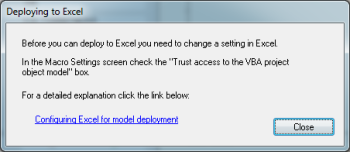
When you try to deploy a model or an ensemble to Excel for the first time, you may come across
this message:
In this page you will find an explanation of how to configure Excel so that
GeneXproTools can deploy models and model ensembles to Excel 2003, 2007, 2010, 2013 and 2016.
The deployment features in GeneXproTools add the model code to Excel but, by default,
Excel does not have this feature enabled. It's very easy to enable this feature in
Excel. All you need to
do is follow the step by step instructions in this page.
If you have Excel 2003
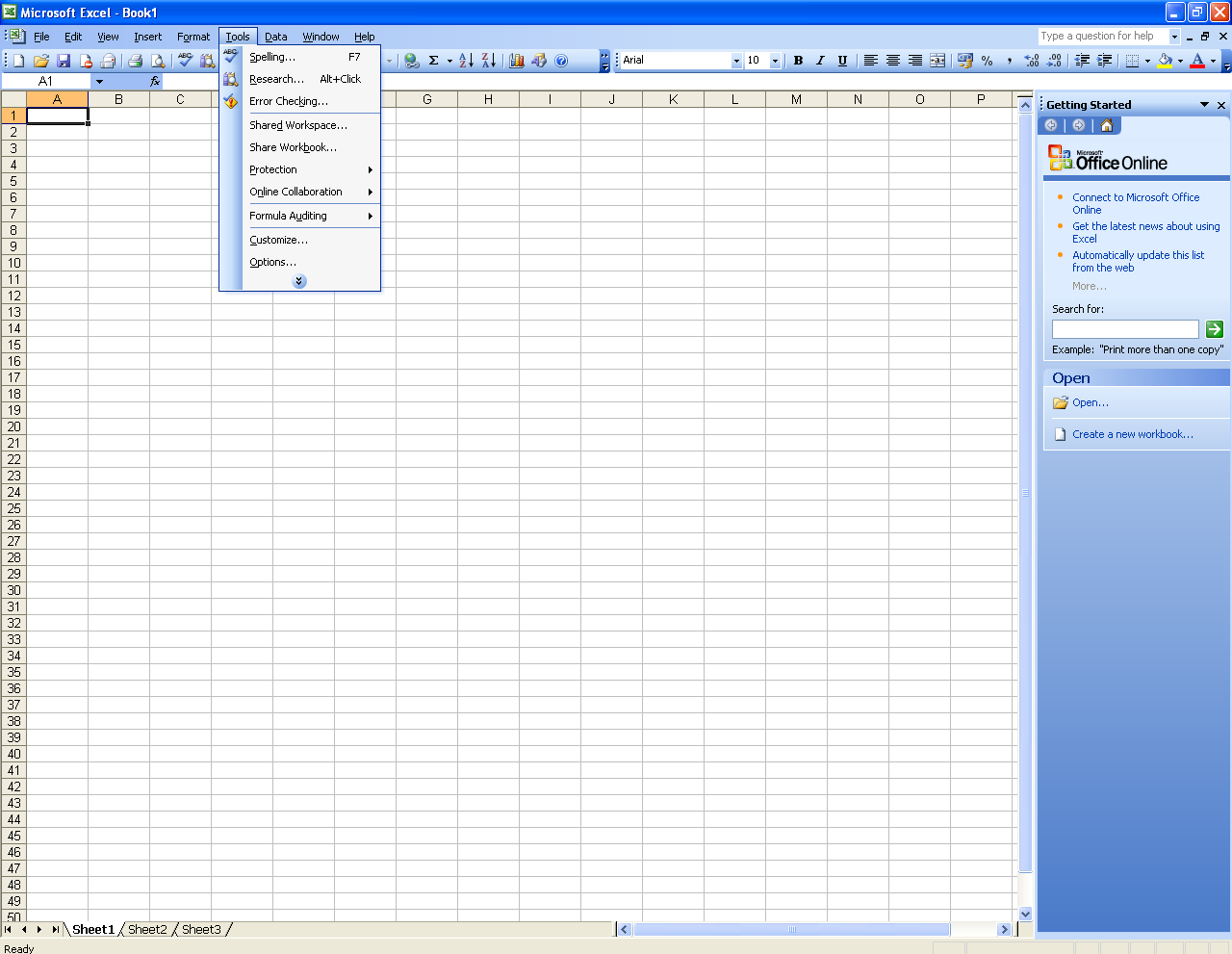
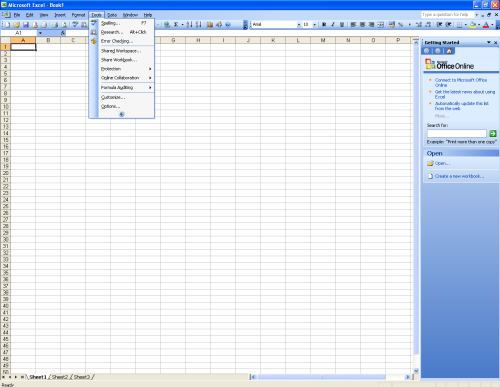
Select the menu Tools -> Options to access the
Options window.
Then in the Options window select the Security
tab and then click the button Macro Security.
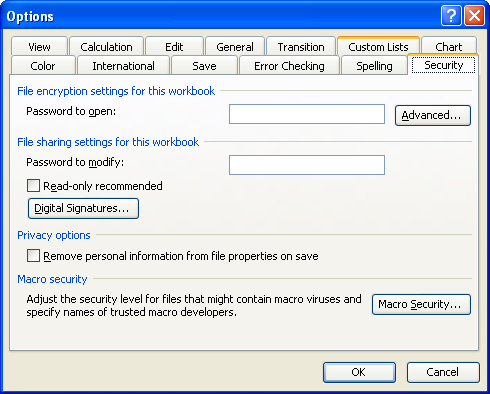
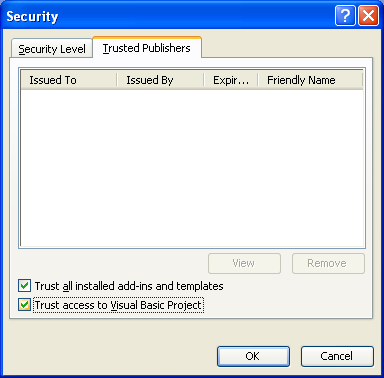
And finally in the Security window check the
Trust Access to Visual Basic Project checkbox.
If you have Excel 2007
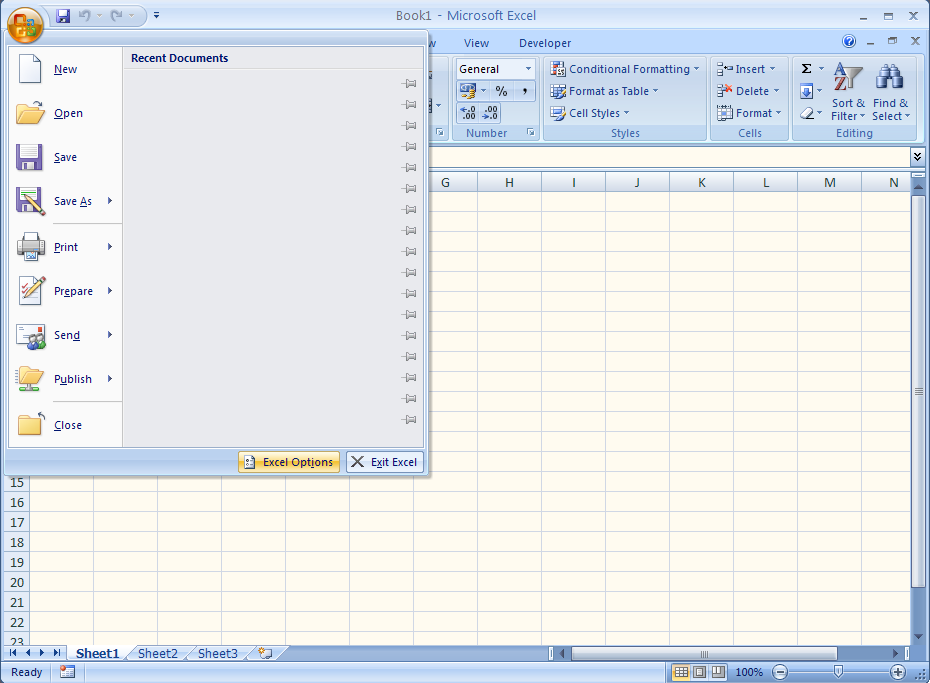
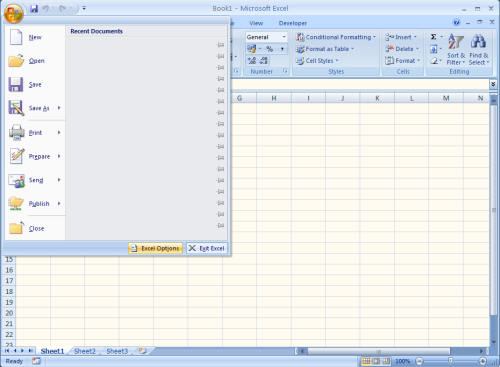
In the menu press the Excel Options at the
bottom:
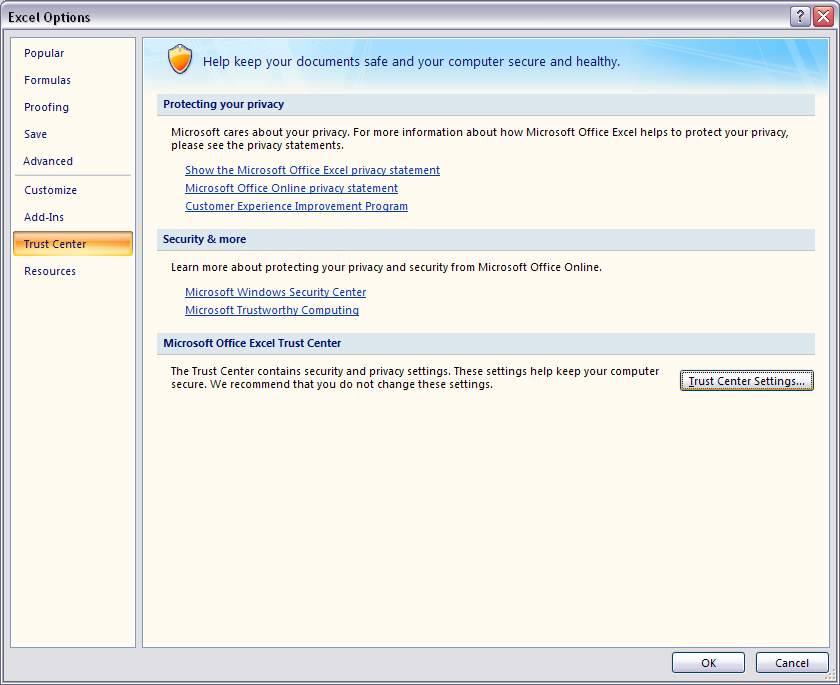
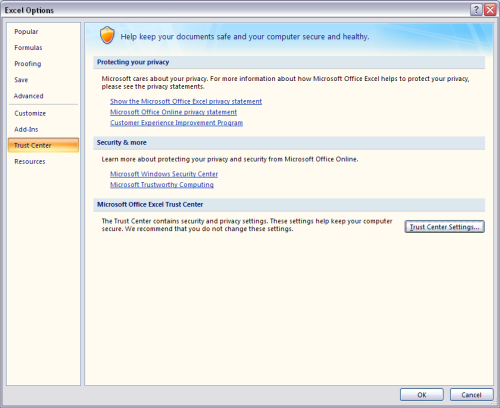
Then in the Excel Options window select the Trust Center
option and then press the Trust Center Settings
button on the right:
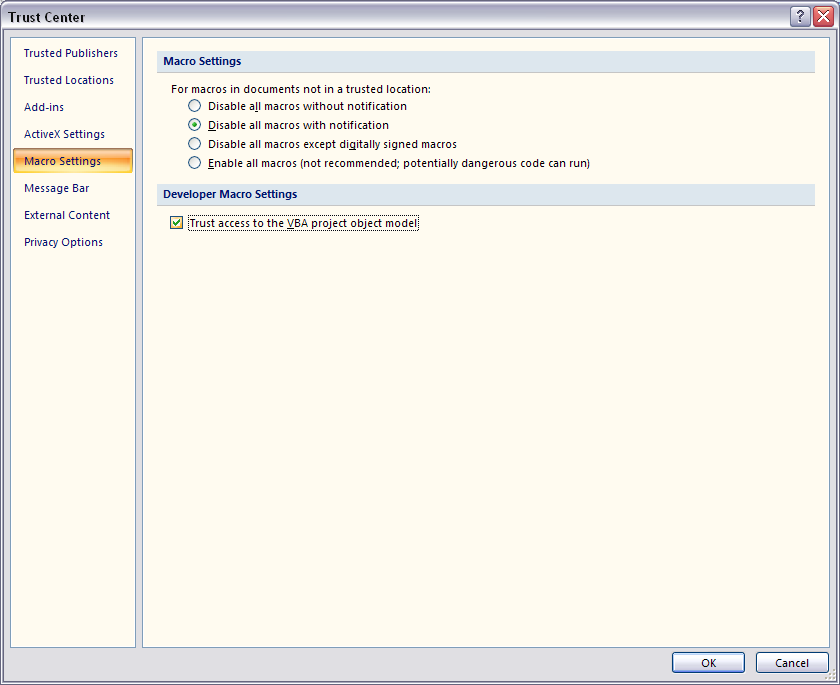
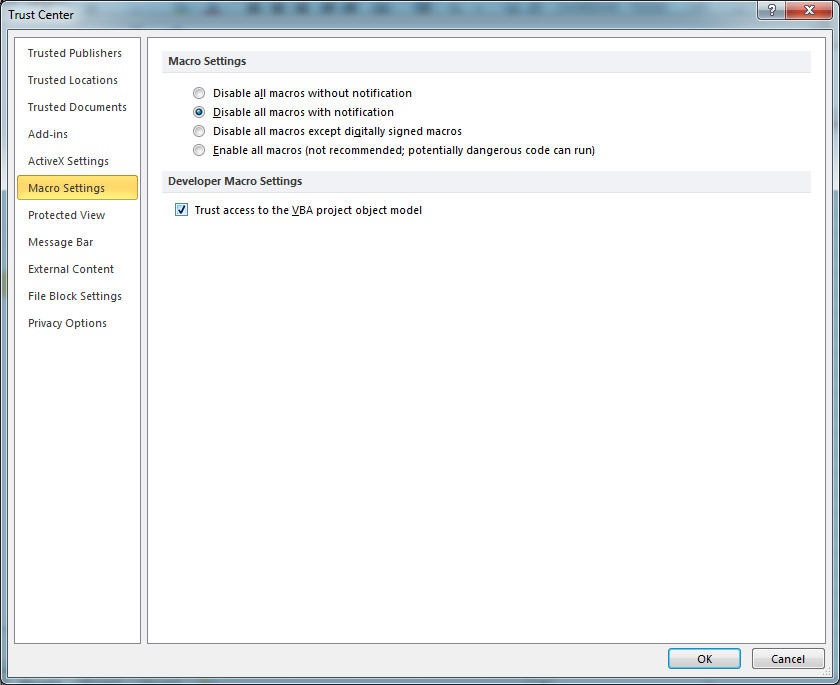
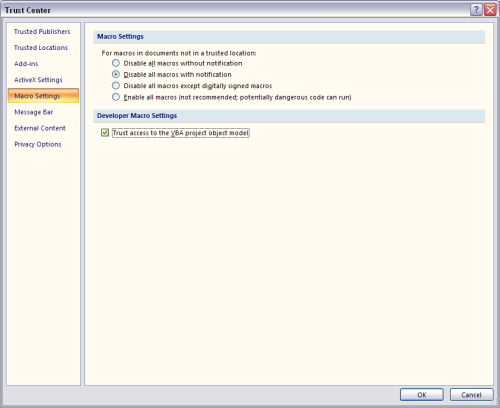
Then in the Trust Center window select Macro Settings and, under the
Developer Macro Settings, check the box "Trust access to the VBA project object model":
If you have Excel 2010, 2013 or 2016
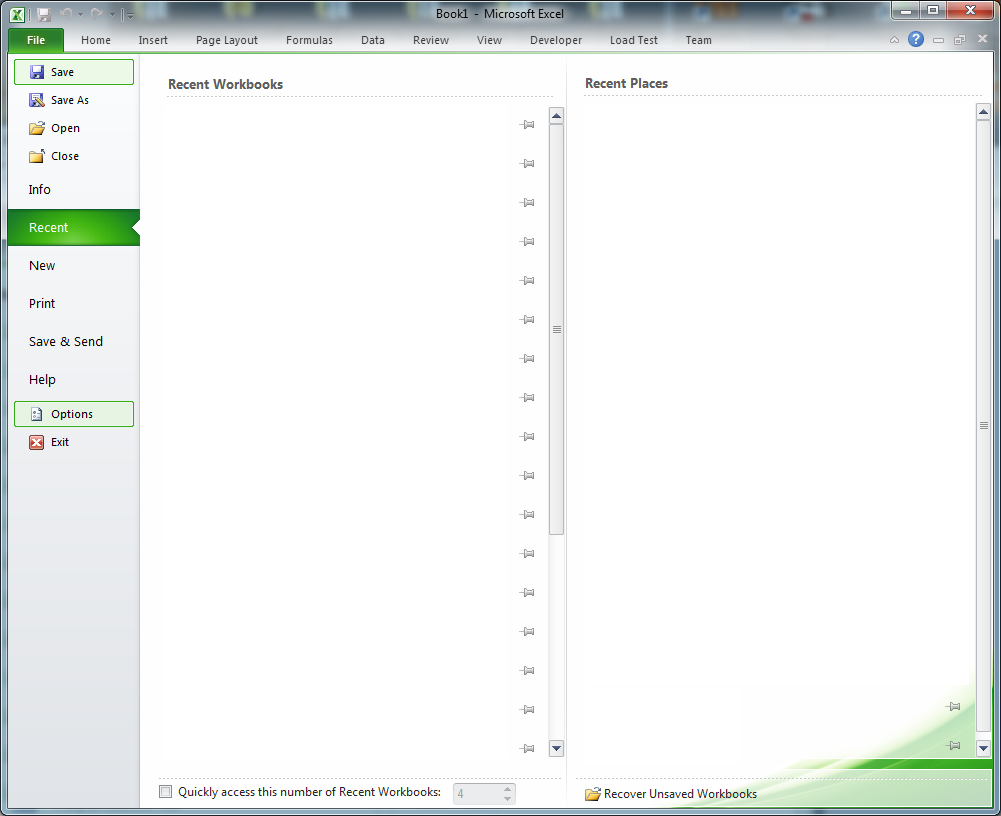
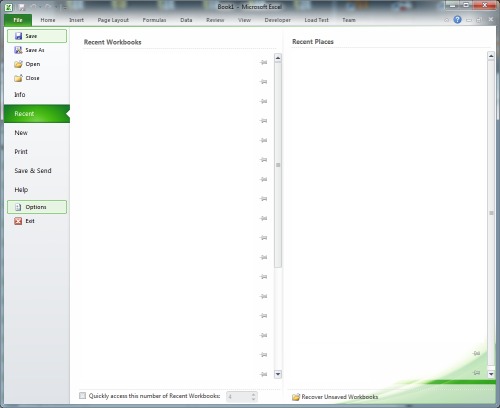
In the menu press the Options at the bottom:
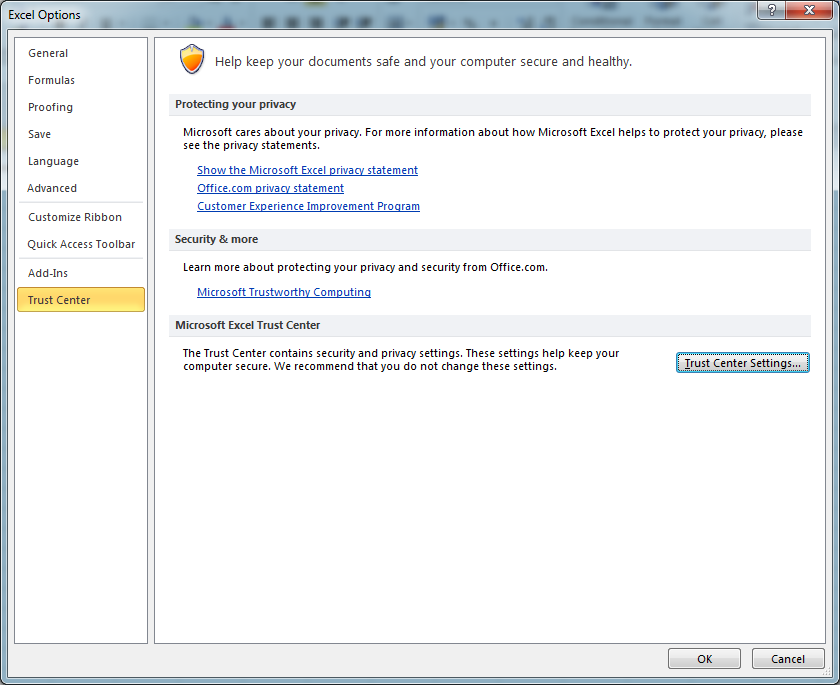
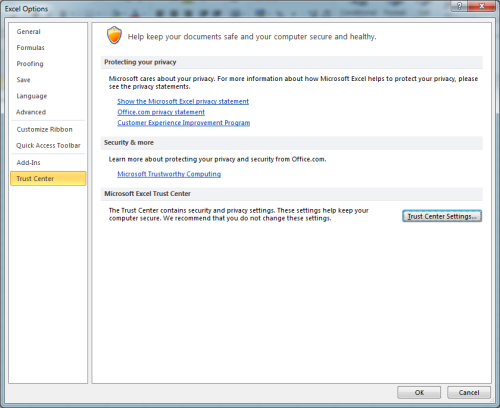
Then in the Excel Options window select the Trust Center
option and then press the Trust Center Settings
button on the right:
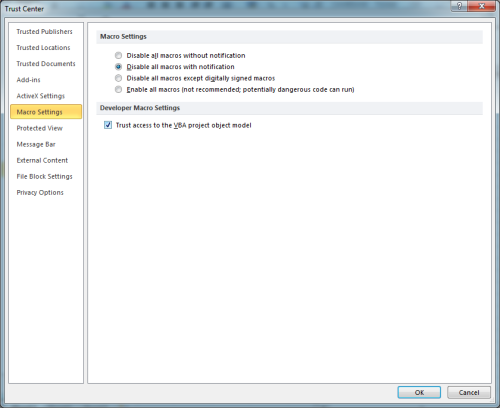
Then in the Trust Center window select Macro Settings and, under the
Developer Macro Settings, check the box "Trust access to the VBA project object model":
Change Registry Value
Recent versions of Excel require that you also change a Registry key. Press Start, write regedit and run the Registry Editor.
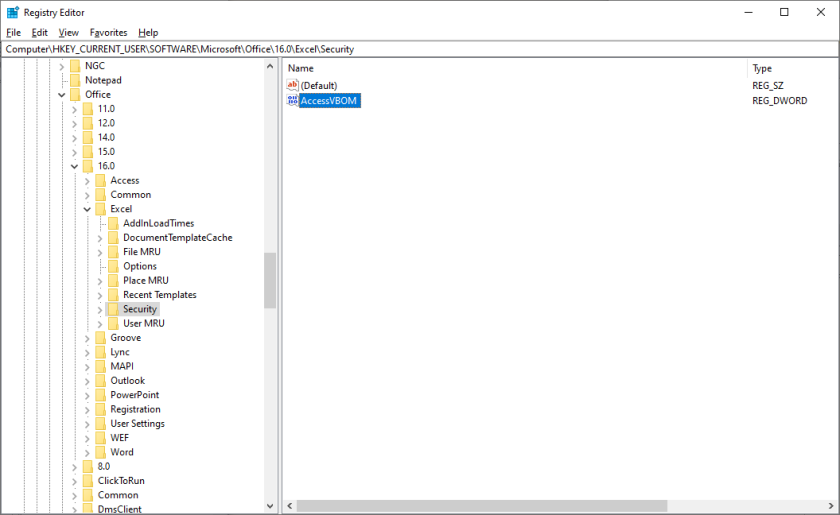
In the Registry Editor expand the HKEY_CURRENT_USER folder and navigate to Computer\HKEY_CURRENT_USER\SOFTWARE\Microsoft\Office.
If see several editions (11.0, 12.0, etc) select the highest number. For example, if you have Office 2016 installed you should
further expand the 16.0 folder then the Excel folder and finally the Security folder as in the image below.
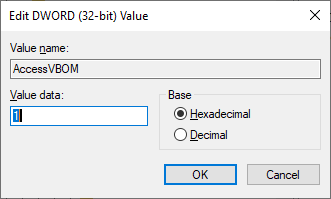
Finally, double click the value "AccessVBOM" and change the value to 1 as in the picture below. Close the Registry Editor
and try again the deployment to Excel in GeneXproTools.
Security Warning and Antivirus Software
Enabling this feature allows any application to add VBA code to Excel files. There is a certain risk in
doing so and you should ensure that your computer is running antivirus software.
Reversing the process will restore the default Excel settings.
It is also possible that
some antivirus software may flag GeneXproTools since it uses this non-default feature. If that is the case, you will
need to add GeneXproTools to the safe list of that software.
If you have any questions regarding this
process, please email us at support@gepsoft.com.
|



 Home
Home About Us
 Contact
 What's New